

When you manage more than one event on VoteNaija, viewing all transactions at once can feel overwhelming. Sometimes, you only want to focus on one particular event to check its voting activity, earnings, or voter behaviour.
On your computer, VoteNaija makes this easy by allowing you to filter transactions by event directly from the Transactions page. You do not need to search manually or scroll endlessly.
This guide explains how to use the event menu to view transactions for a specific event clearly and efficiently.
Go to the Transactions Page
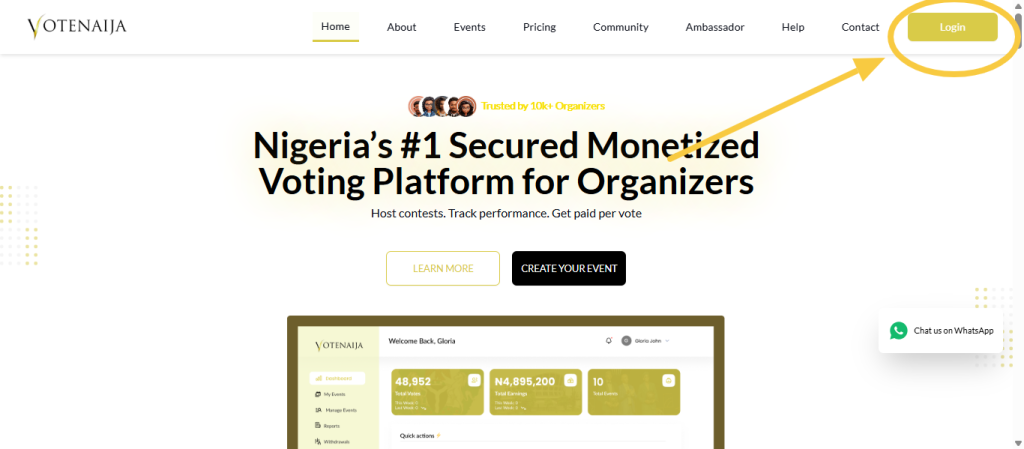
Start by logging in to your VoteNaija account using your computer browser.
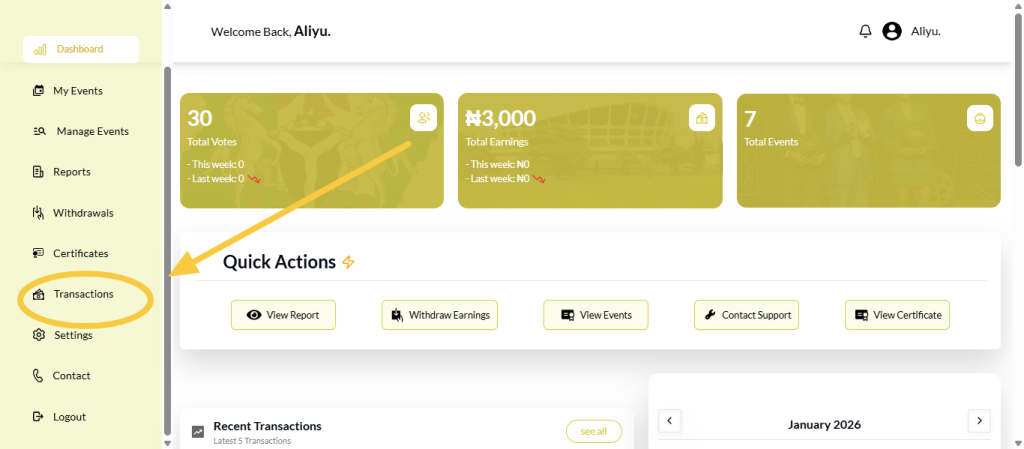
Once you are logged in, you will land on your dashboard. From the dashboard menu, click on Transactions. This takes you to the page where all voting records across your events are displayed.
By default, this page shows transactions from all events combined.
Understand the All Events Dropdown
At the top of the Transactions page, you will see a dropdown menu labelled All Events.
This dropdown is designed to help you filter transactions without typing anything. It contains a list of all events associated with your account.
The All Events option means you are currently viewing transactions from every event you manage.
Before selecting anything, take note that the transactions list below reflects everything across your events.
Select a Specific Event from the Dropdown
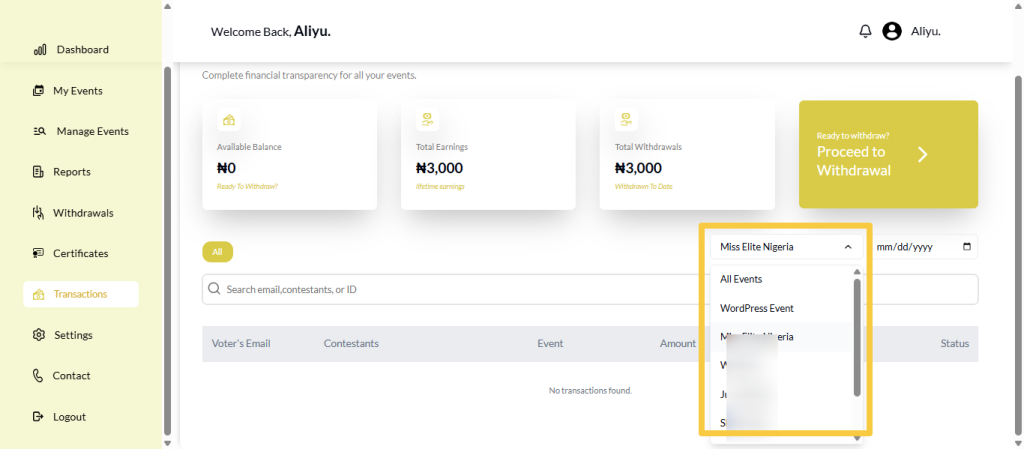
Click on the All Events dropdown to open the list.
From the list, select the event you want to review. As soon as you click on an event, the page updates automatically. You do not need to refresh the page or click an extra button.
Once selected, only transactions related to that particular event will be displayed in the transactions list.
Review the Filtered Transactions
After choosing an event, scroll down to the transactions section.
You will now see only voter activities connected to the selected event. Each transaction row shows details such as the voter email, contestant voted for, amount paid, date and time, and transaction status.
This makes it much easier to focus on one event without distractions from others.
Confirm That the Filter Is Active
To be sure the filter is working, look back at the dropdown menu.
The selected event name will now appear instead of All Events. This confirms that the page is currently showing transactions for that specific event only.
If you switch to another event, the list will update again instantly.
Combine Event Filtering with Other Tools
While the event dropdown alone is very effective, you can combine it with other tools on the Transactions page.
You can use the date option to view transactions from a specific day within that event. You can also use the search bar to find a particular voter, contestant, or transaction linked to the selected event.
All these tools work together and update results instantly.
Instead of guessing or mixing data, you get accurate information for the exact event you need.
Final Words
Filtering transactions for a specific event on VoteNaija using your computer is simple and effective. By going to the Transactions page and selecting an event from the All Events dropdown, you can instantly view only the transactions that matter to you.
This keeps your records clear, saves time, and helps you manage each event with confidence and control.
Understand how VoteNaija works with these guides:\
- How to Update Your Organizer Profile on VoteNaija (On a PC)
- How to Set Up Your Bank Details for Withdrawals (On a PC)
- Which Bank Details Are Required to Withdraw Earnings? (On Your Computer)
- When Can I Request a Withdrawal? Understanding Withdrawal Timing (On PC)
- How to Add or Update Bank Details for Payouts (On a PC)