

When you manage multiple events on VoteNaija, checking transactions for just one event at a time makes things much easier.
On your phone, you can quickly filter transactions to focus on a specific event without scrolling through unrelated records.
VoteNaija’s mobile layout keeps this process simple and clear, even on a smaller screen. This guide explains how to filter transactions for a particular event using your phone.
Open the Transactions Page from the Menu
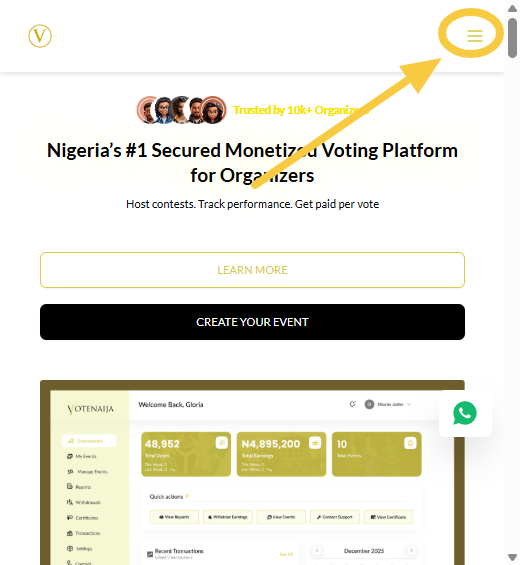
Start by opening your browser on your phone and logging in to your VoteNaija account.
Once you are logged in, tap the menu icon at the top corner of the screen to open the navigation menu. From the menu options, tap on Transactions.
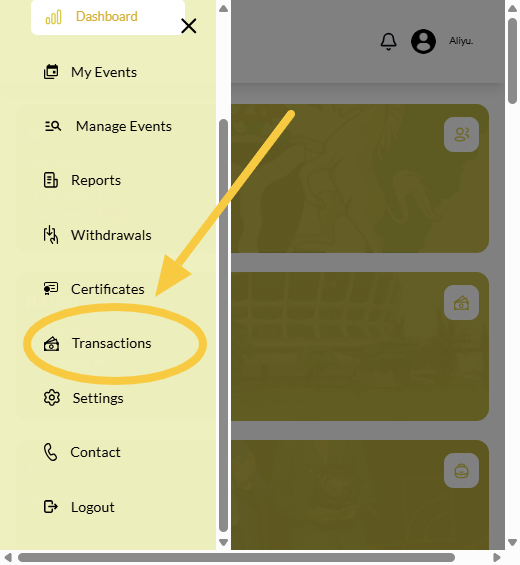
This takes you to the page where all voting records are displayed.
By default, transactions from all events appear on this page.
Locate the Event Filter on Mobile
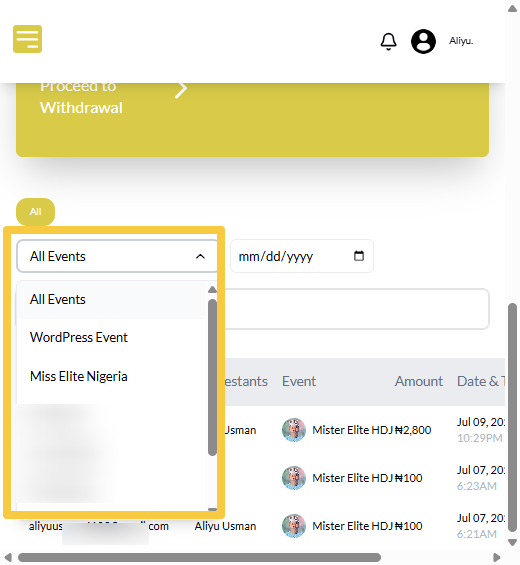
At the top of the Transactions page, you will see an event option showing All Events.
This option works as a filter and allows you to choose which event’s transactions you want to view. It is placed at the top so you can filter results before scrolling through the list.
Select an Event to Filter Transactions
Tap on the All Events option to open the list of your events.
From the list, select the event you want to review. Once you tap an event, the page updates automatically. There is no need to tap a confirm button or refresh the page.
Only transactions related to the selected event will now be shown.
Scroll Through the Filtered Transactions
After selecting an event, scroll down the page to review the transactions.
On mobile, transactions appear in stacked rows for easier reading. Each entry shows details such as the voter email, contestant voted for, amount paid, date and time, and transaction status.
Since only one event is selected, it becomes much easier to focus on the information you need.
Check That the Correct Event Is Selected
To confirm that the filter is active, look back at the event option at the top of the page.
The name of the selected event will be displayed instead of All Events. This confirms that you are viewing transactions for that specific event only.
You can change the event at any time by tapping the event option again.
Use Other Filters Alongside the Event Menu
For better accuracy, you can combine the event filter with other available tools.
You can select a date to view transactions from a specific day or use the search bar to find a particular voter, contestant, or transaction within the selected event. The results update instantly, helping you find information faster.
This reduces unnecessary scrolling on your phone.
Why Event Filtering Is Useful on Mobile
Filtering transactions by event on your phone helps you stay organised while on the move.
It allows you to quickly review voting activity, respond to questions, and monitor event performance without needing a computer.
The mobile layout ensures everything remains easy to access and understand.
Final Words
Filtering transactions for a specific event on VoteNaija using your phone is quick and straightforward. By using the menu icon to open the Transactions page and selecting an event from the All Events option, you can instantly view only the transactions that matter.
This makes managing your events simpler, clearer, and more efficient wherever you are.
Understand how VoteNaija works with these guides:
- How to Track Event Performance from Your Dashboard (On a Smartphone)
- Difference Between “My Events” and “Manage Events” Tabs (On Your Phone)
- Understanding Your Dashboard on VoteNaija (On Your Smartphone)
- How to Create a New Event on VoteNaija (On Your Smartphone)
- How to Avoid Auto Publishing Before You Finish Setting Up Your Event on Your Phone