

Checking votes by date helps you clearly understand when voting activity happened on your event.
This is useful when reviewing daily performance, responding to complaints, or confirming transactions made on a particular day.
On VoteNaija, the Transactions page on your computer includes a date filter that allows you to view all votes made on a selected date, along with full voter and transaction details. This guide shows you how to use that feature correctly.
Step 1: Log Into Your VoteNaija Account
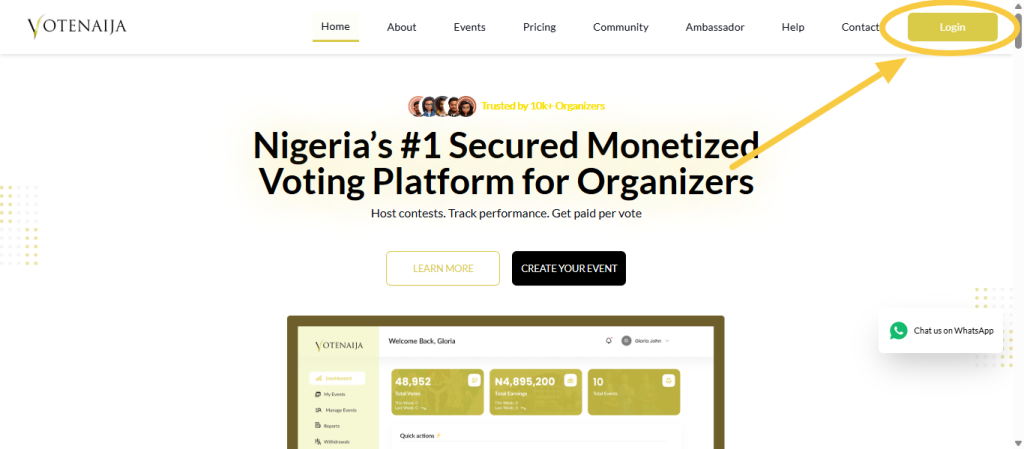
Start by opening your browser on your computer and logging in to your VoteNaija account.
Once your login is successful, you will be taken to your dashboard. This is where all your event management tools are available.
Step 2: Go to the Transactions Page
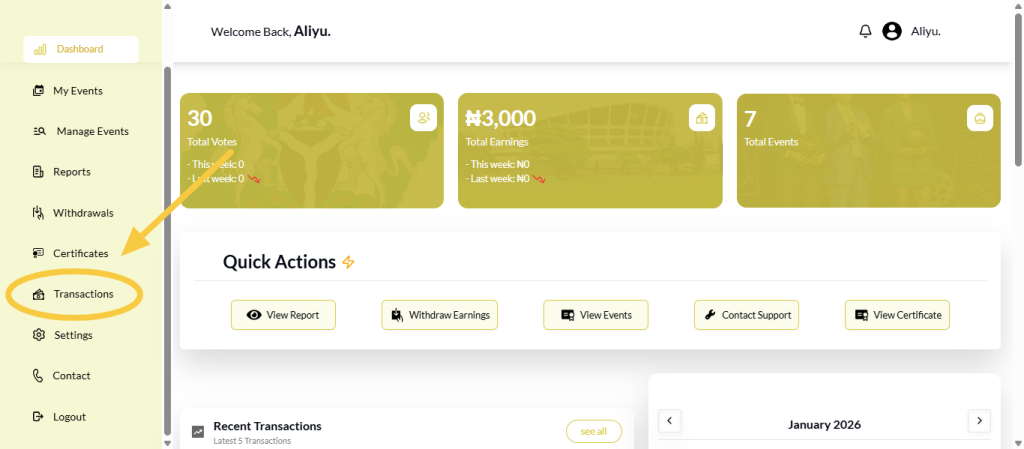
From your dashboard menu, click on Transactions.
This opens the Transactions page, which contains all voting records across your events. By default, votes from all dates and all events are displayed on this page.
Step 3: Locate the Date Filter
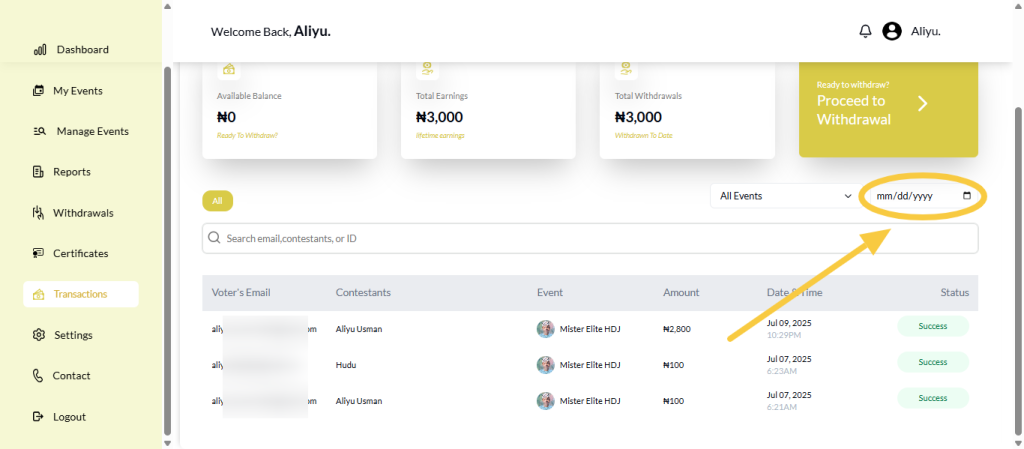
At the top of the Transactions page, you will see filtering options.
Beside the event filter, there is a date filter. This option allows you to narrow down votes based on the day they were made. You do not need to select an event first before using the date filter.
The date filter works on its own and can also be combined with other filters if needed.
Step 4: Select the Date You Want to View
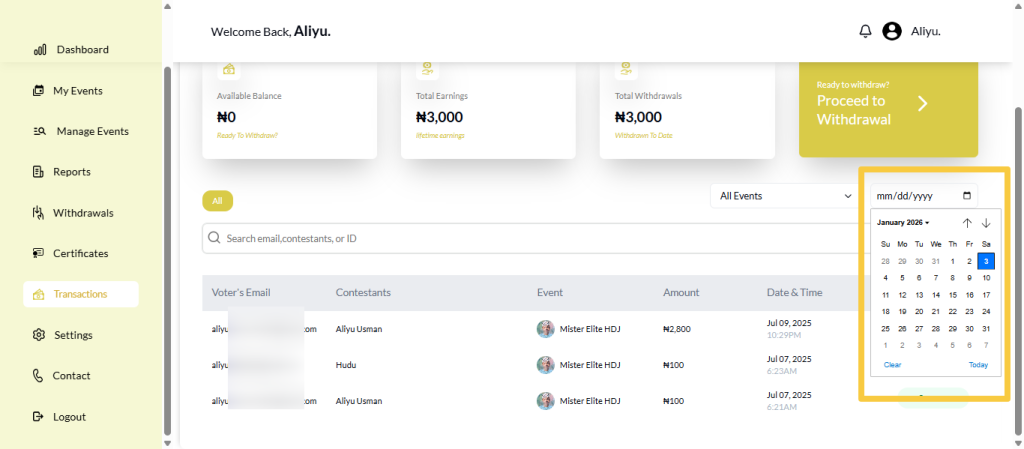
Click on the date filter and choose the specific date you want to review.
Once a date is selected, the page updates automatically. There is no need to refresh the page or click any confirmation button. Only votes made on that selected date will now appear in the transactions list.
This helps you focus only on voting activity from that day.
Step 5: Review Votes Made on the Selected Date
After selecting the date, scroll down to the transactions section.
You will now see all votes purchased on that date. Each vote appears in its own row with complete details that help you understand the transaction clearly.
For each vote, the following information is displayed:
- Voter’s email
- Contestant voted for
- Event name
- Amount paid
- Date and time of the vote
- Transaction status
This layout makes it easy to review multiple votes quickly and accurately.
Step 6: Check the Status of Each Vote
While reviewing the list, pay close attention to the status column.
The status shows whether each vote was successful or not. This helps you confirm which votes were counted and identify any unsuccessful transactions that occurred on that date.
Having this information clearly displayed helps with transparency and issue resolution.
Step 7: Use Other Filters If Needed
If you need more precise results, you can combine the date filter with other tools on the Transactions page.
You can select a specific event to view votes from that event on the chosen date. You can also use the search bar to find votes linked to a particular voter, contestant, or transaction.
All filters work together and update results instantly.
Final Words
Viewing all votes made on a specific date on VoteNaija using your computer is simple and reliable.
By accessing the Transactions page and using the date filter beside the event option, you can instantly see all votes from a chosen day with full details.
This helps you stay organised, answer questions confidently, and keep accurate records for your events.
Use VoteNaija confidently with these guides:
- How to Update Your Organizer Profile on VoteNaija (On a PC)
- How to Set Up Your Bank Details for Withdrawals (On a PC)
- Which Bank Details Are Required to Withdraw Earnings? (On Your Computer)
- When Can I Request a Withdrawal? Understanding Withdrawal Timing (On PC)
- How to Add or Update Bank Details for Payouts (On a PC)