

When managing your events, you might notice two similar options in the menu: My Events and Manage Events. They look alike, but they serve different purposes.
To make things easier for you, let’s walk through what each one does and when to use them.
What They Have in Common
Both tabs are connected to the events you create. From either one, you can:
- See your events
- Track some details
- Add contestants
- Make updates when needed
But the experience is not the same. Let’s look at what makes each one special.
My Events
To open this page, tap the menu icon on your dashboard and select My Events.
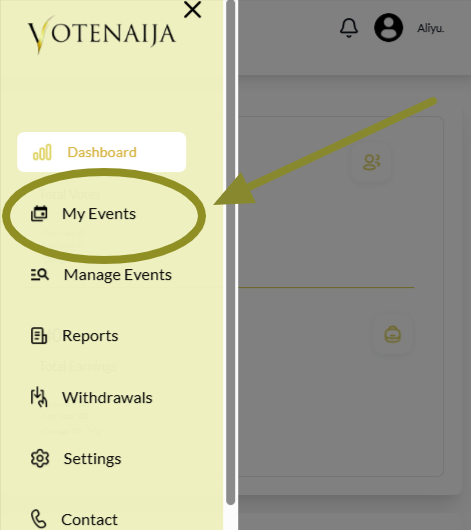
This page focuses more on how your events are doing. It is divided into two main sections.
1. Your Event Stats
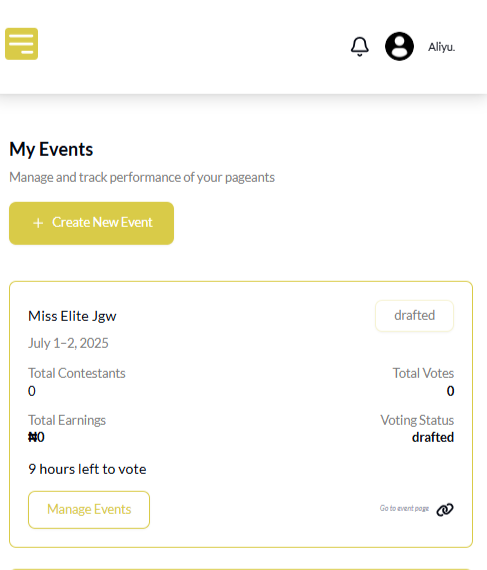
Every event you have created is listed with a summary box. Each box shows:
- How many contestants you added
- The total votes received
- Your total earnings
- The status of the event, whether it is a draft, waiting for approval or already approved
This gives you a quick view of your progress.
2. Create a New Event
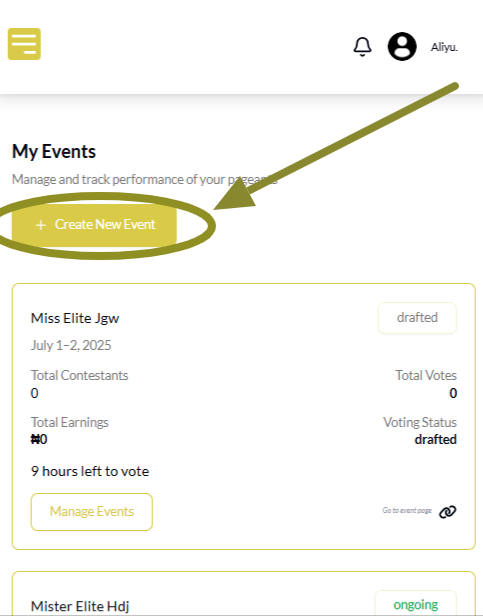
At the top or bottom of the page, you will find a button to create a new event. Just tap it to get started with something fresh.
That is all you will do here. But what if you want to update your event or add contestants? That takes us to the next one.
Manage Events
This is also found in the menu. Tap Manage Events to open it.
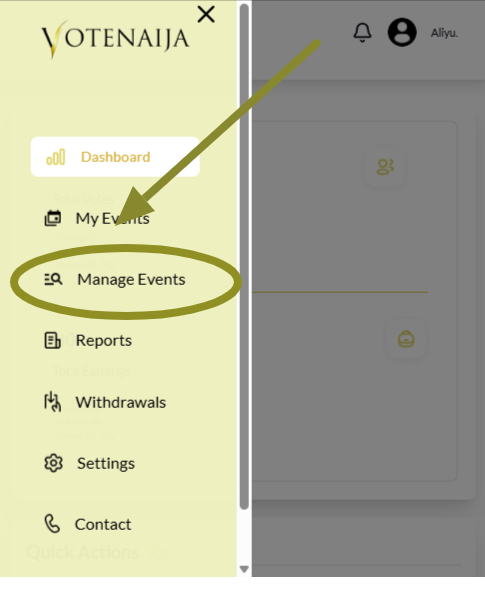
This page lets you do more than just view. It is where you take action. You will see all your events listed with small icons next to them.
Event Creation

Tap the Create New Event button at the top of the page to start setting up a new event.
Event Management
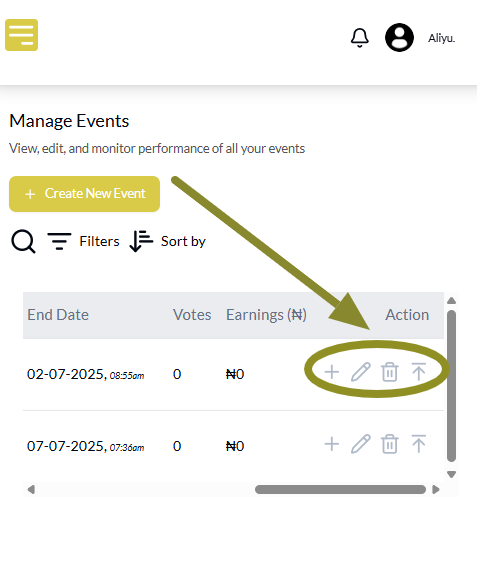
Here is what you can do for events that are already listed:
- Add contestants ➕
- Edit the event details ✏️
- Delete an event you no longer want 🗑️
- Publish a draft event when you are ready ⬆️
Note: You might need to scroll sideways to access the event management icons on your phone, especially if your screen is small.
This is the area to use when you are actively working on an event.
All Clear Now
Now that you know the difference, it will be easier to decide where to go. Use My Events when you want to see how your events are doing. Use Manage Events when you want to make changes or take action.
Whichever one you tap, you are still in full control.
These helpful VoteNaija guides make things a lot easier.
- How to Vote for a Contestant on VoteNaija Using Your Smartphone
- How to Print Your Event Report on VoteNaija (On Your Smartphone)
- How to Check Total Votes and Earnings for an Event (on a Phone)
- How to Track Event Performance from Your Dashboard (On a Smartphone)
- How to Create a New Event on VoteNaija (On Your Smartphone)