

If you are using your phone and want to update your password, you can do it right from your dashboard. Whether it is for extra security or just a fresh start, changing your password is quick and easy.
Let’s go through the steps.
Step 1: Log into Your VoteNaija Dashboard
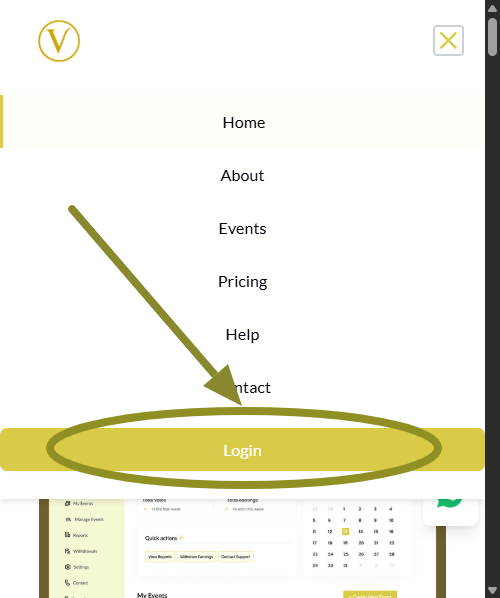
Open the VoteNaija website on your browser. Tap the menu icon at the top of the screen and scroll down to tap the Login button.
Enter your email and password to sign in. You will be taken to your dashboard.
Step 2: Tap the Menu and Go to Settings
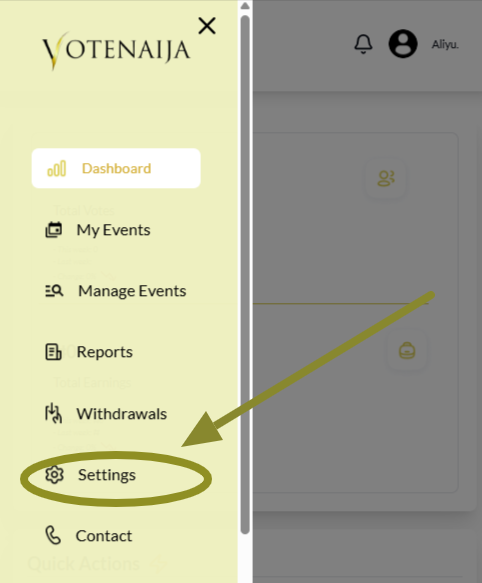
Tap the menu icon again to open the dashboard menu. Scroll through and tap on Settings.
This is where you manage your profile details, bank information, and password.
Step 3: Tap on Change Password at the Top
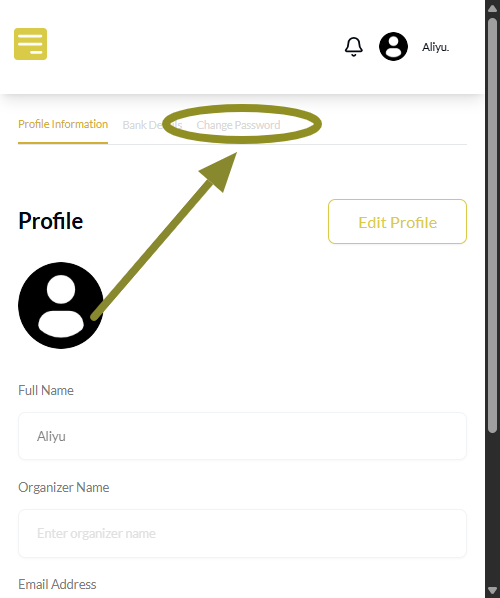
Inside the Settings page, look at the top section. Tap on Change Password to open the form where you will update your password.
Step 4: Fill in the Password Fields
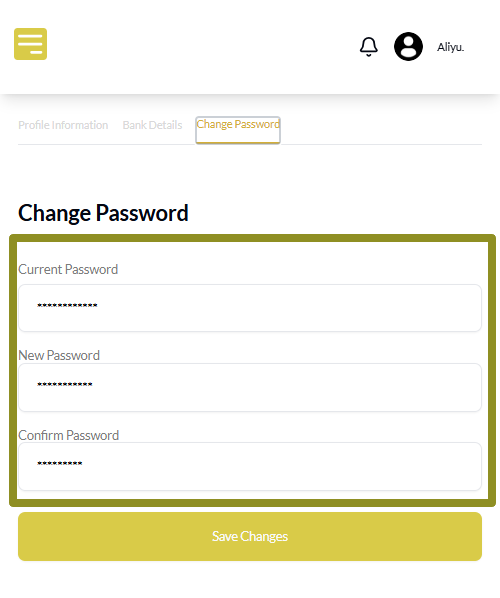
You will see three input fields. Enter the following:
- Your current password
- Your new password
- Confirm the new password
Take note of these important tips.
Helpful Tips
- You must provide your current password first
- Your new password should include at least one special character
- Make sure both new password and confirm password are exactly the same
- Password must be between six and ten characters
Double check everything before saving.
Step 5: Tap Save Changes
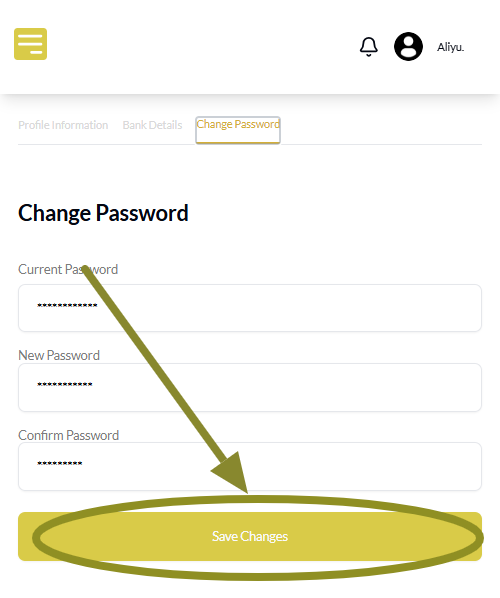
Scroll to the bottom and tap the Save Changes button.
Once done, your password will be updated and you will see a message confirming the change.
Wrapping Up
Using your phone does not mean you miss out on anything. You can manage your account fully, including changing your password when needed.
It is a good habit to update your password from time to time. If you ever feel unsure about your account’s safety, this is the first thing you should do.
Use these helpful VoteNaija guides to stay ahead.
- Why You Can’t Edit an Event After It Goes Live (And What to Do Instead) – On a Phone
- How to Edit Event Details While It’s Still in Draft Mode (On Your Smartphone)
- How to Edit or Update an Ongoing Event on Your Phone
- What Does the Event Status “Ongoing” Mean? (On Your Phone)
- How to View Start and End Dates for Your Voting Event (On a Smartphone)