

Do you want to know how to print your event report using your smartphone?
It’s just as simple as doing it on a PC. You can access your report right from your mobile browser and download it within minutes. Nothing is complicated at all.
Let’s go through the steps together and see how it’s done.
How to Print Your Report in 5 Easy Steps
Before we dive into the steps, here are a few things you should keep in mind:
- You must be logged into your VoteNaija account.
- You need to have created at least one event.
- Only event owners will be able to access the Reports section on their dashboard.
Now, let’s begin.
Step 1: Go to the VoteNaija Dashboard
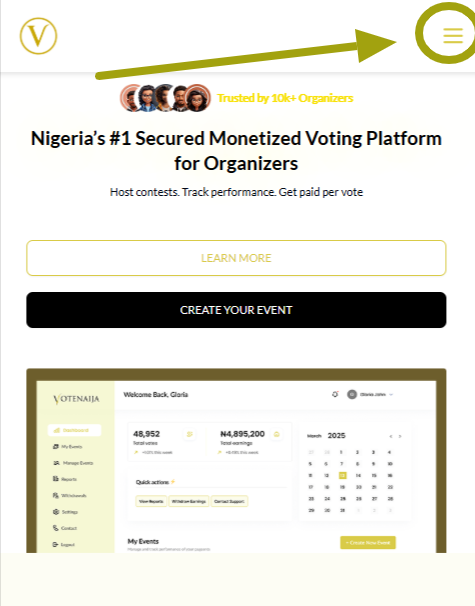
Open your mobile browser and visit the VoteNaija website.
Tap the menu button at the top right corner of the screen.
Click Login.
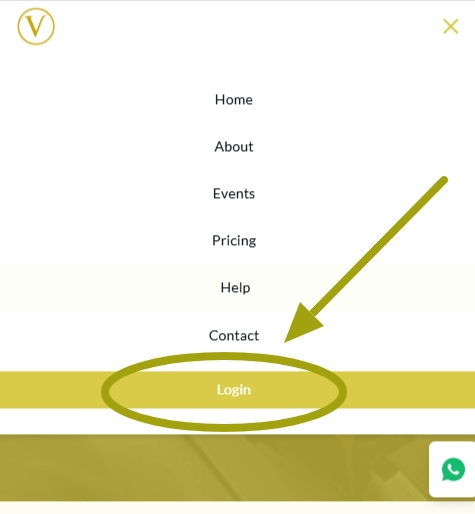
Once you log in, you’ll be taken directly to your dashboard.
If you were already logged in, you’ll be redirected to the dashboard without needing to log in again.
Want a shortcut? You can directly just go to the dashboard here.
Step 2: Click on the Dashboard Menu Icon
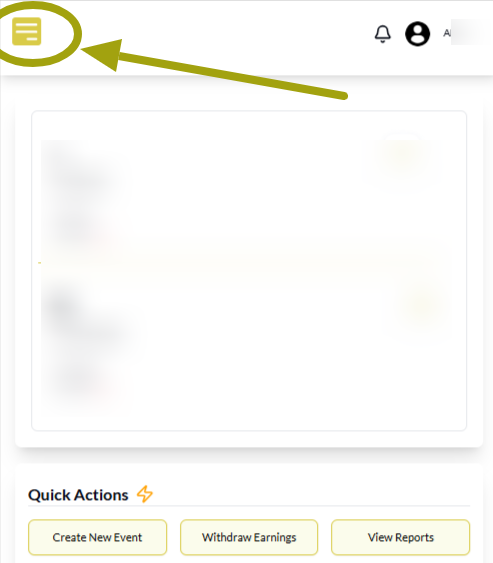
On the dashboard, tap the menu icon (at the top corner) to open the side menu.
From the list of items, tap Reports.
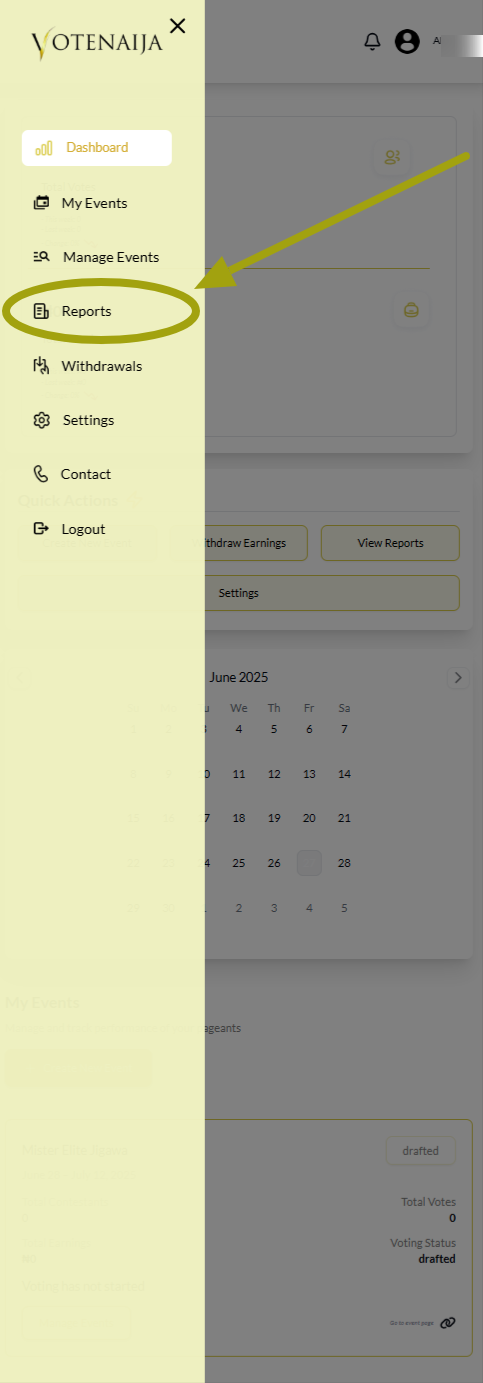
If you don’t have any event on your account, this section will not show anything.
Also, you can only access reports for your own events.
Step 3: Select the Event from the Dropdown
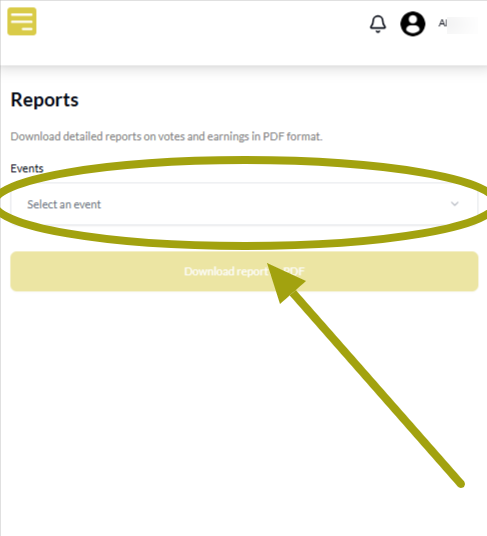
When the Reports page opens, you’ll see a dropdown labeled Select an event.
Tap on it to reveal the list of your events.
- If you have only one event, it will appear right there and you can select it.
- If you have multiple events, they will all be listed in the dropdown. You can only select one at a time.
Step 4: Download the Report as a PDF
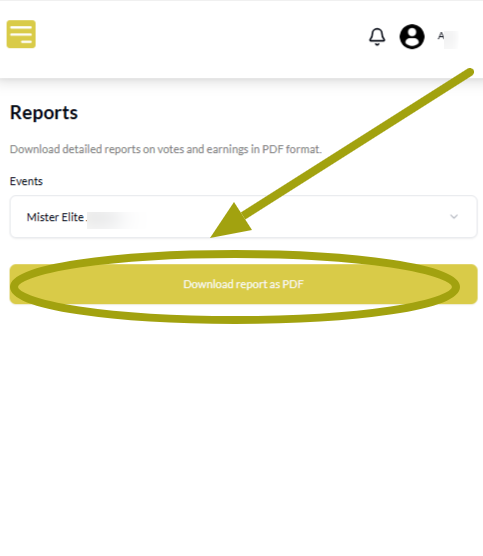
After selecting the event, a button will appear that says Download report as PDF.
Tap the button.
The report will begin downloading immediately.
Depending on your phone settings, the file may be saved in your Downloads or Files folder. It should be ready within a few seconds.
Step 5: Use the Report the Way You Want
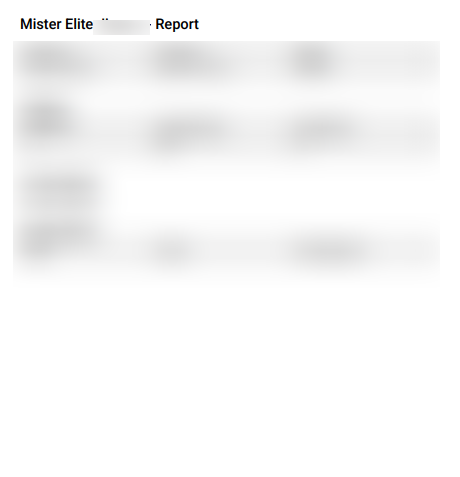
Your report will contain the following:
- The name of your event, along with its date and status.
- A summary section showing total votes, total earnings, and total contestants.
- A list of the top contestants.
- All contestants with their names, vote counts, and vote percentages.
You can keep the file as a soft copy on your phone or print a hard copy if needed. The choice is yours.
That’s it for the mobile process.
Wrapping up
You’ve just learned how to download or print your event report using your smartphone.
Always make sure you’ve created at least one event before heading to the Reports section.