

Knowing which contestants voters supported and how much they spent helps you track engagement and manage your event effectively.
On VoteNaija, the Transactions page on your computer shows all this information in one place. You do not need to open separate records or run reports.
This guide explains how to view each voter’s activity clearly and accurately.
Step 1: Log Into Your VoteNaija Account
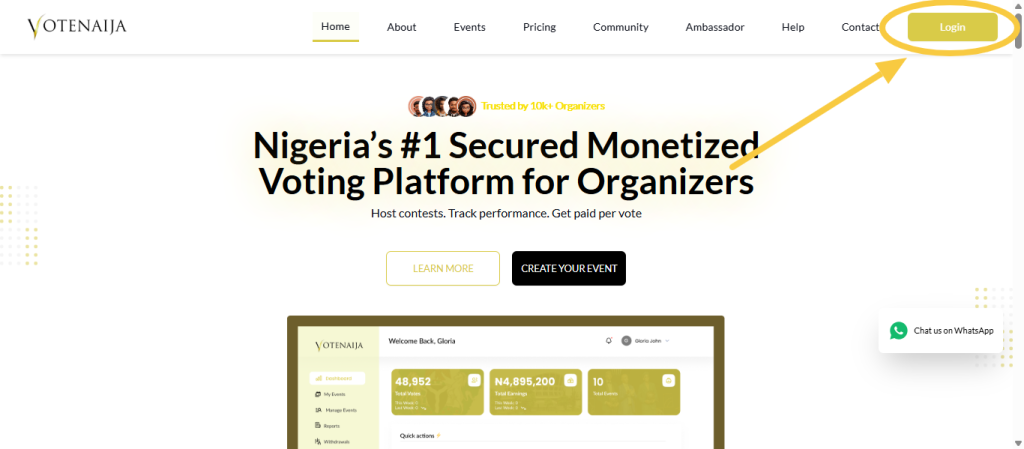
Start by opening your browser on your computer and logging in to your VoteNaija account.
Once you are logged in, you will be taken to your dashboard, where all your event management tools are available.
Step 2: Go to the Transactions Page
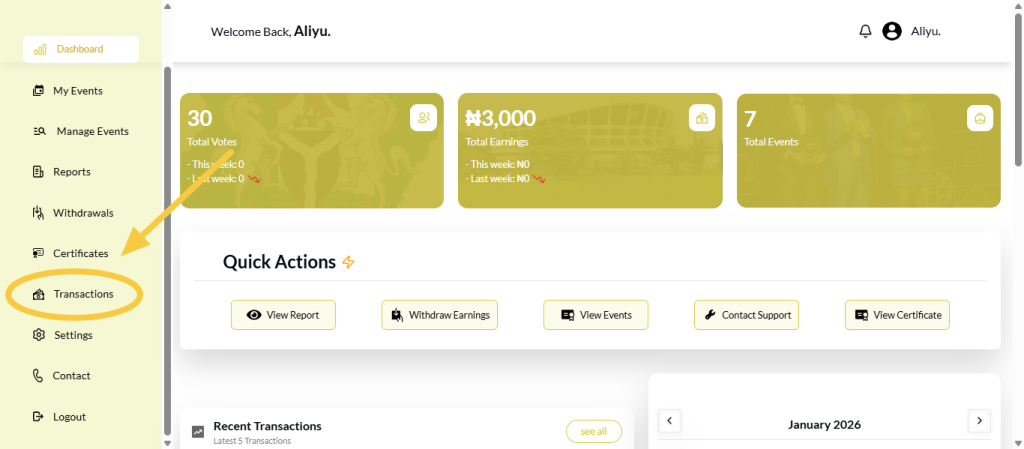
From the dashboard menu, click on Transactions.
This opens the Transactions page, which contains all voting activity across your events. By default, votes from all events and dates are displayed.
Step 3: Scroll to the Transactions Section
Scroll down the page to see the list of votes.
Each row represents a single voting action. The layout shows key information at a glance without needing extra clicks.
Step 4: Identify Which Contestant Each Voter Supported
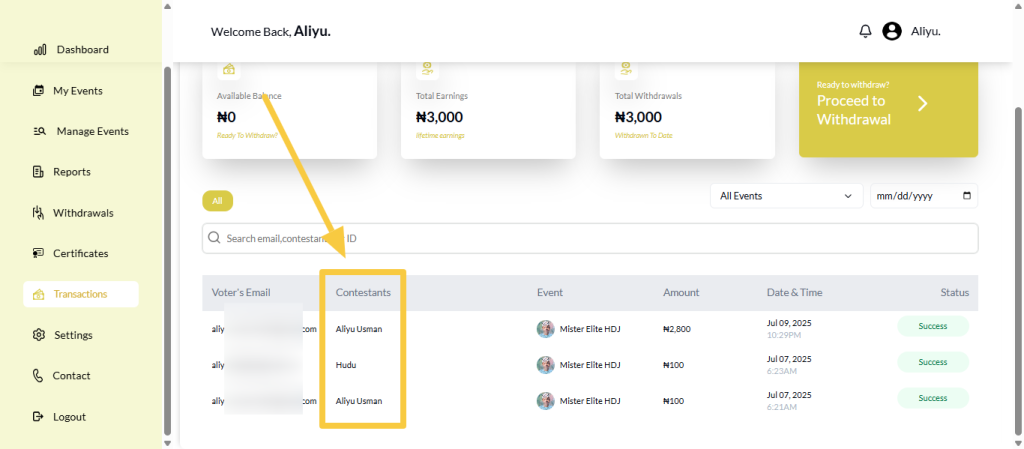
Look at the contestant column in each transaction row.
This column shows exactly which contestant received the vote. Each row links one voter to one contestant for that specific vote. If a voter voted multiple times, you will see multiple rows for that voter.
Step 5: Check How Much Each Voter Spent
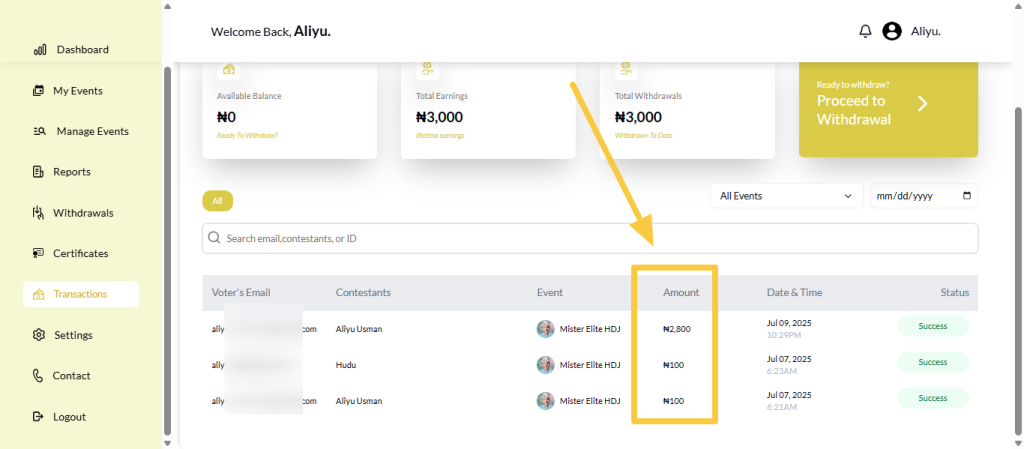
Next to the contestant information, you will see the amount column.
This shows how much the voter paid for that particular vote. Each transaction reflects only that vote’s cost, not the voter’s total spending across all votes.
By checking the voter email alongside the contestant and amount, you can clearly understand each voting action.
Step 6: Review Additional Vote Details
Other useful details are displayed alongside the voter, contestant, and amount information.
You will see the event name, date and time of the vote, and transaction status. These details give context and help confirm when the vote was made and whether it was successful.
Step 7: Use Filters for More Accuracy
If you want to focus on specific votes, you can use the filters at the top of the Transactions page.
You can filter by event to see votes for a particular contest or use the search bar to find votes linked to a specific voter or contestant.
All filters update the results instantly, making it easier to review the information you need.
Final Words
Seeing which contestants each voter supported and how much they spent on VoteNaija using your computer is simple and clear.
By going to the Transactions page and reviewing the voter email, contestant, and amount columns, you can track voting activity accurately.
Using filters when needed helps you stay organised, manage your event confidently, and keep full records of all transactions.
Get started on VoteNaija with these guides: