

You opened your dashboard and saw the word ongoing written on your event.
Now you are wondering what that means and what you are still allowed to do with the event.
This guide will help you understand that status clearly and explain what it means for you and your event.
What Does It Mean?
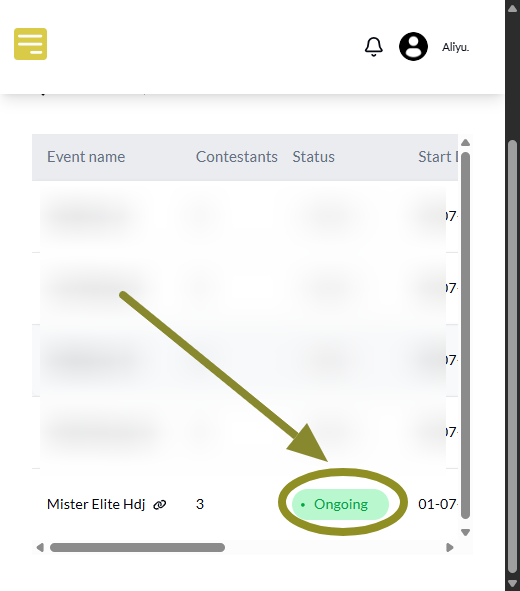
When your event status says ongoing, it means the event has been approved and is now live.
People can visit the event page, view your contestants, and start voting. It also means your event has started counting votes and is now active in the public space.
So once you see ongoing, just know that everything is now live and you are no longer in the draft or setup stage.
How Does It Affect What You Can Do on Your Events
There are a few things you can no longer change once an event is marked as ongoing.
You cannot remove any contestant after the event goes live. This is because some of them may already have received votes, and removing them can affect the fairness of the voting process.
You also cannot change the following:
- The name of the event
- The vote cost
- The event link or slug
- The start date
But you can still do a few helpful things. You are allowed to:
- Add more contestants
- Update the banner
- Edit the event description
- Extend the end date if needed
So while some parts are now locked, you can still manage and improve the rest of your event.
How to Know Whether an Event Is in That Status
Tap the menu icon at the top of your screen and go to My Events.
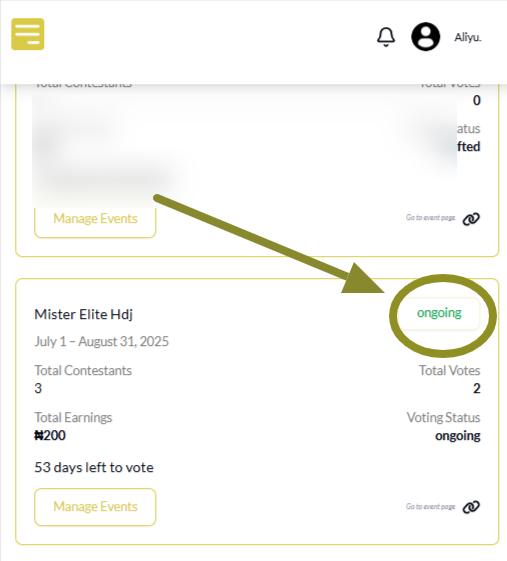
Your events will be listed there, and each one has its own box with details. The event status is written clearly in the box without needing to tap or scroll anything.
You can also go to Manage Events from the menu.
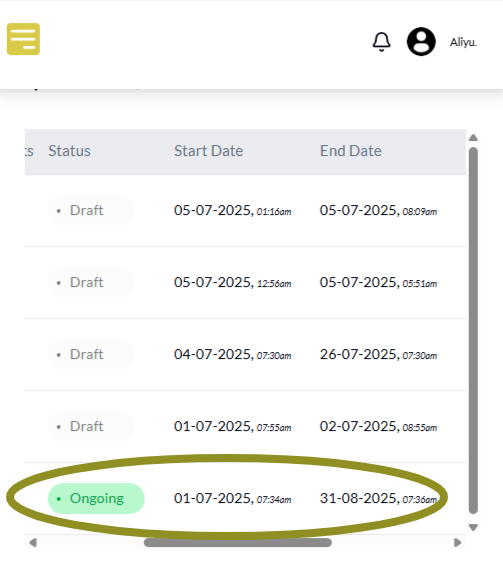
There, you will also see the status written next to each event.
Wrapping Up
Ongoing simply means your event is live and ready for voting.
At this point, some parts of the event cannot be changed anymore, so it is good to always confirm your setup before publishing. But you can still improve your event by adding more contestants or updating the end date if you want to give voters more time.
Knowing what the status means helps you manage your event better and stay in full control until it ends.
Everything you need to know is in these easy VoteNaija guides.
- How to Avoid Auto Publishing Before You Finish Setting Up Your Event on Your Phone
- Can I Still Add Contestants After the Event Starts? Here’s What to Know (on a Phone)
- Why You Can’t Edit an Event After It Goes Live (And What to Do Instead) – On a Phone
- How to Edit Event Details While It’s Still in Draft Mode (On Your Smartphone)
- How to Edit or Update an Ongoing Event on Your Phone